26 April 2012
Patience
Today's image is titled "Patience". I'll let my readers/viewers decide if that refers to patience on my part in stalking so close to this frog (I believe I was pretty close to life-size magnification here), or patience on the part of the frog in putting up with the guy with the unwieldy tripod sticking a huge lens in its face.
I thought I'd use this post to start a new (roughly) weekly feature on the blog that I'm going to call (for lack of a better imagination) Thursday Tips. Each Thursday I'll post a brief (or maybe not so brief at times) nature photography tip. Today I'll start with some tips on photographing frogs and toads ('cause everyone wants to photograph frogs and toads), but these tips are also applicable to many macro animal subjects.
1. Get low! Just like any other animal subject, frogs and toads usually look best when photographed as close as possible to THEIR eye level, not yours. So unless you are going for an artsy high-magnification close-up of the eyes from a top view (which can be cool), spread out those tripod legs and prepare to kneel or crawl in the mud. Get as low as your tripod allows. You are using a tripod, right?!
2. Slow patient movements are the key. I also find that approaching from the front, in full view, works best. They get nervous when you try to sneak up behind them and they will leap for it. It is okay to show them what you are doing, as long as what you are doing shows that you aren't a threat. Get low, inch forward slowly, and be very careful when re-positioning your tripod legs. With patience, luck, and a friendly frog, you can get quite close. For this shot the end of my lens hood ended up being about nine inches from the top of this green frog's (Rana clamitans) nose.
3. Work in small pools or frog ponds where they might not be quite so wary of predators. This particular individual was next to a tiny frog pond just in back of the visitor center at Huntley Meadows, rather than out in the marsh (where they are a tasty snack for herons and egrets). Most humans that visit the park (and there are a lot in this urban park) don't even know the pond is there, or don't care, so it doesn't get much human traffic either.
4. Consider using a polarizer. Wet frogs, wet rocks, wet vegetation, and even the water line where it meets a frog in the water can cause distracting glare and highlights. A polarizer will help you manage those reflections. In the case of this image, I made a conscious decision to shoot without a polarizer because of the conditions, but often I do use one.
5. Don't be afraid to use natural light. Sure macro flash can help you stay more mobile, but it will often give you fairly uninteresting lighting, and also the unnatural flash catch-lights in the eyes. If you use natural light, you will often get interesting reflections in the eyes, like the reflections of the tree canopy you see in this image. A frog resting by the water will usually stay absolutely still. So it is safe to use long shutter speeds in your exposure (thus keeping your aperture small for depth of field and allowing you to use a low ISO). I've personally photographed frogs with shutter speeds up to at least 1 or 2 seconds long. The only thing you need to be concerned about is that with high magnification and those really long shutter speeds, the area between the nares (nostrils) can go soft due to the rise and fall of breathing.
Have fun shooting!
P.S. In case anyone was wondering, here were the settings for this shot: ISO 200, f/22, 1.3 seconds, and photographed with the Canon EF 180mm macro f/3.5L lens on a Canon 7D body.
Labels:
Latest Work,
Tips and Locations
22 April 2012
Make Hay While The Sun Doesn't Shine
Happy Earth Day everyone! As I mentioned in a previous post, "Don't Fear The Rain", days with light or sporadic rain and low wind in the spring should not be wasted. They are fabulous days for wildflower photography. Recently I headed to G.R. Thompson Wildlife Management Area in Linden, VA on just such a drizzly day. The fog or low misty clouds I had hoped for didn't materialize. The rampant underbrush and downed logs and branches throughout much of Thompson makes it very difficult to get a good wide composition that highlights the carpet of large-flowered trillium and I had hoped the fog would help provide some mood and hide/soften some of the distracting background. But I did get plenty of light rain, overcast diffuse light, and little wind. Here are some highlight images from the day with a few brief comments here and there on their making. Hope you enjoy!
I couldn't resist the large raindrop hanging off of this newly emerged yellow lady's slipper (Cypripedium parviflorum) with its lens image of the bare forest tree line up above on the hill. I used a large aperture (f/3.5) to isolate the flower against an out-of-focus background of the hill/vegetation behind it. I also couldn't resist a cutesy title for this one. The well-known expression goes, "April showers bring May flowers" and in this case the shower is definitely in April and the flower doesn't usually show up until May in a normal year. So I thought it was an apt title, with a little tongue-in-cheek homage to the early spring, although I'm sure (as my wife also assured me) no one would have gotten it without my explanation.
This large-flowered trillium (Trillium grandiflorum) was growing right next to the yellow lady's slippers and I almost passed it by and moved on. Luckily I took a second look and made some images, as it is probably one of the most perfect specimens I've encountered this year and I love the raindrops covering the upper petals and the forward facing leaf.
The May-apple (Podophylum peltatum) is abnormally large compared to the trillium this year. Normally the May-apple just starts to shade out the trillium as it is going by, but this year much of the trillium carpet is hidden under patches of May-apple. I decided to use this to my advantage by finding trillium flowers that were just poking out, surrounded by the lovely May-apple leaves. This is one of the best examples I found. Note also the beautiful pink color of this trillium. While it is true that large-flowered trillium turn pink as they age, the Blue Ridge and Shenandoah Mountains are also home to pink genetic varieties that are pink from first opening of the bloom to death (and there are seemingly many hybrids that are various gradations of the two). So it is not correct to say that this is an aging blossom; in fact it is quite fresh other than being beaten up by the rain a bit.
This is one of my favorite areas at Thompson. Just at the bottom of the "Trillium Trail" where the Appalachian Trail meets the fire road, there is a beautiful rocky swamp area full of skunk cabbage and false hellebore. Trillium grows all around and even throughout the swamp and just when you get to the swamp on the AT there are some lovely showy orchis specimens growing right along the trail. This is also a great area for birding. I could spend an entire day photographing in this one little area and never get bored or tired.
Believe it or not, this is not a manufactured photograph. This is exactly how I found this trillium; growing up through the fronds of newly-emerged Christmas fern (Polystichum acrostichoides).
This final image was an earlier (and another favorite) image of a trillium flower and May-apple. In this case (and in the interest of full-disclosure) I used a new Photoshop technique (for me). I took two different images, one with the foreground in focus and another with the flower and background in focus. I was close enough and had to be angled enough to get the right angle on the trillium blossom that even with a small aperture, I couldn't get sharp depth-of-field from front to back in one photograph. So I took the two images and used the focus stacking feature in Photoshop CS5 to blend the sharp regions of the two images together into one image that was sharp from front to back. In retrospect, I wish I had one more image that was focused in the middle; and I did do that in a couple of similar series of images. But of course, the images that had the perfect composition and no wind movement in the flower, were the ones where for some reason I only took one with the flower focused and one with the foreground focused. Well, I'll get better, as I've a feeling this is a technique that I'm going to keep in my arsenal. The focus stacking procedure I used in Photoshop was quick, mostly automatic, easy, and I love the results.
Labels:
Latest Work,
Stories
17 April 2012
Un-Wild
As you know, I'm mostly a "wild" nature photographer and I don't spend a lot of time photographing gardens or other "human-tended" natural things. However, the DC area is home to some spectacular gardens (some of which feature native species or native plant sections) and I do on occasion like to visit these spots during their peak times. Sometimes it is because it allows me to get unique group images or close-ups that would be difficult in the wild; and sometimes they can just be useful places to practice my craft and revel in the beauty of nature. Plus, they are often a much shorter drive than the wild places that I like to visit. 8-)
One such spectacular garden (and for my money, the best generalist gardens in the area) is Brookside Gardens in Wheaton, MD. I recently spent a morning photographing there in the hopes of catching some of the rapidly fading spring tulips. It gave me some great opportunities to play with shallow depth of field and with isolations within fields of flowers.
Gardens are great places to have fun and experiment. And who knows? Maybe some of those techniques you experiment with will find their way onto your next "wild" photo trip.
Labels:
Latest Work
16 April 2012
How To Make A Photo Wall For Your Facebook Cover Photo
This post is particularly for my photographer friends and/or for Photoshelter users who like to use the photo wall feature on their websites and would like their Facebook page to have the same feel. But I suppose anybody could use it to create a photo wall on their personal page as well. I used Adobe Photoshop to create my photo wall cover image and I'll assume that my readers have some familiarity with the program. If you have any questions, please leave them in the comments section and I'll do my best to answer them.
I was not particularly happy with the cover image for my new "Timeline" Facebook business page. It was a great panoramic image of a great blue heron next to the Great Falls of the Potomac with the water in the falls nicely blurred, but at the required size and resolution, it just didn't "pop" at all. While looking at a recent post on the Photoshelter blog, I read a brief post about 39 creative Timeline cover photos and checked out the link. There were some great examples in the article, but it turns out that what really caught my eye was the next item down in the blog featuring Brighton Dog Photography. They had included a capture of part of the photographer's main website and it turns out that the capture was about the size of a Timeline cover image. I've always loved the look of the photo wall on my website and thought the cover image-sized capture of Brighton Dog Photography's photo wall looked really great. Plus, by using a photo wall-like cover image, I could make the branding more similar between my website and Facebook business page. So I got to work...
Here's what I've come up with so far and also a link to my photo wall on the actual page:
I'm sure I could continue to improve this, so if you have any suggestions, feel free to leave them in the comments section here or on the wall on my fan page. What follows is a brief description of how I put this together in case you'd like to create something similar for your page.
In Photoshop go to File --> New and in the dialog box that pops up create a canvas with a width of 850 pixels and a height of 320 pixels (the maximum dimensions of a Timeline cover image). Set the resolution at 72 ppi and color as sRGB for web display and for now you can keep the background as white. Hit OK.
Next, I used the the paint bucket tool to change my background color to match the background color of the photo wall on my website. For this light gray color I used 191 for all three of the RGB values. You could certainly leave it white as well, particularly if your web page background is white. To start out I also set guides 10 pixels in from all the edges of the canvas to help with placing photos.
Next, use the Place command (File --> Place...) to import images onto the canvas as Smart Objects. There are two big reasons for importing the images as Smart Objects rather than directly importing them. First, this embeds the original photo so when you are resizing the image up and down as you play with placement, it calls on the original image so you don't end up with soft and pixelated images. Second, as I'll discuss in a moment, it allows you to change images relatively quickly and easily. When you initially import an image, it will show up on the canvas with a bounding box around it and a large X over the photo. At this point hold down the Shift key (to keep it proportional) and click and drag the corners to resize your image to the desired size. If needed, click and drag inside the image to move it to the desired location on the canvas. Once you are happy with it, hit enter to lock the image.
You can play with the organization of the images. You don't have to use the arrangement that I used; I just started placing images and playing with the sizing. I wanted to reproduce the somewhat jumbled look and mix of verticals and horizontals that I get on my website's photo wall. I highly recommend, however, that you set guides around each photo to help with placement, spacing, and if you inevitably want to swap one of the images out.
The choice of images is up to you. I found (through trial and error) at this relatively small size that keeping a consistent color scheme in the images looks much better and less busy than a completely random selection of images. In my case, I choose late spring/early summer images that featured a predominant green color cast and that matched the current season.
Now comes the beauty of placing the images as Smart Objects. If you don't like an image or want to switch images, instead of mixing everything around or starting over, you can easily replace one image with another. Go to the layer for that particular image, right click on the layer, and from the pop-up menu that appears choose "Replace Contents..." and choose a new image. Sometimes when the new image pops in, it won't be sized properly. However, if you have set your guides, it should be a simple matter of holding the Shift key and clicking and dragging the corners to resize to line the image up with the preexisting guides. The one problem is that the layer will continue to contain the file name of the original image, but you could always change the layer names to numbers or something else that makes sense instead. If you ever forget which layer corresponds to which image, just click on the eye icon next to a given layer and see which image disappears. Click the eye back on to make it reappear.
This also means that you can easily replace images later on to make a completely new cover image to keep your Facebook page fresh. I'm thinking I will do somewhat seasonal changes that reflect what is happening in the natural world during that time period. For example, I can do a red, yellow, and orange fall color wall in the autumn and images of snow, ice, and wintering snow geese in the winter.
What happens if you lock the size of an image, but then want to change it? No problem. Just select the layer of the corresponding image, then choose Edit --> Free Transform, and you will get the bounding box back and you can use Shift, click, and drag to resize the image again.
Now for the final touches. I didn't want my photo wall to be completely flat and I liked the idea of having it look like a bunch of gallery wraps actually hanging on a wall. So I added a slight bevel and emboss effect to each image. Here is how to do it. Click on a layer (corresponding to an image) and go to Layer --> Layer Style --> Bevel and Emboss. I found the default settings to be a bit too much for this purpose, so I changed the following settings: Style: Inner Bevel, Technique: Smooth, Size: 3px, and I reduced the opacity of the Highlight Mode and Shadow Mode in the shading panel to 60%. Unfortunately it seems that you have to do a Bevel and Emboss for each layer individually, but once it is done, the effect is maintained when you swap images.
Once I was happy, I flattened the image, did a Filter --> Sharpen, and used the Save For Web command to create my jpeg. Then it was a simple matter of uploading the new cover image. I hope this helps and again please feel free to leave comments or questions here or on my Facebook page and I'll get back to you.
I was not particularly happy with the cover image for my new "Timeline" Facebook business page. It was a great panoramic image of a great blue heron next to the Great Falls of the Potomac with the water in the falls nicely blurred, but at the required size and resolution, it just didn't "pop" at all. While looking at a recent post on the Photoshelter blog, I read a brief post about 39 creative Timeline cover photos and checked out the link. There were some great examples in the article, but it turns out that what really caught my eye was the next item down in the blog featuring Brighton Dog Photography. They had included a capture of part of the photographer's main website and it turns out that the capture was about the size of a Timeline cover image. I've always loved the look of the photo wall on my website and thought the cover image-sized capture of Brighton Dog Photography's photo wall looked really great. Plus, by using a photo wall-like cover image, I could make the branding more similar between my website and Facebook business page. So I got to work...
Here's what I've come up with so far and also a link to my photo wall on the actual page:
I'm sure I could continue to improve this, so if you have any suggestions, feel free to leave them in the comments section here or on the wall on my fan page. What follows is a brief description of how I put this together in case you'd like to create something similar for your page.
In Photoshop go to File --> New and in the dialog box that pops up create a canvas with a width of 850 pixels and a height of 320 pixels (the maximum dimensions of a Timeline cover image). Set the resolution at 72 ppi and color as sRGB for web display and for now you can keep the background as white. Hit OK.
Next, I used the the paint bucket tool to change my background color to match the background color of the photo wall on my website. For this light gray color I used 191 for all three of the RGB values. You could certainly leave it white as well, particularly if your web page background is white. To start out I also set guides 10 pixels in from all the edges of the canvas to help with placing photos.
Next, use the Place command (File --> Place...) to import images onto the canvas as Smart Objects. There are two big reasons for importing the images as Smart Objects rather than directly importing them. First, this embeds the original photo so when you are resizing the image up and down as you play with placement, it calls on the original image so you don't end up with soft and pixelated images. Second, as I'll discuss in a moment, it allows you to change images relatively quickly and easily. When you initially import an image, it will show up on the canvas with a bounding box around it and a large X over the photo. At this point hold down the Shift key (to keep it proportional) and click and drag the corners to resize your image to the desired size. If needed, click and drag inside the image to move it to the desired location on the canvas. Once you are happy with it, hit enter to lock the image.
You can play with the organization of the images. You don't have to use the arrangement that I used; I just started placing images and playing with the sizing. I wanted to reproduce the somewhat jumbled look and mix of verticals and horizontals that I get on my website's photo wall. I highly recommend, however, that you set guides around each photo to help with placement, spacing, and if you inevitably want to swap one of the images out.
The choice of images is up to you. I found (through trial and error) at this relatively small size that keeping a consistent color scheme in the images looks much better and less busy than a completely random selection of images. In my case, I choose late spring/early summer images that featured a predominant green color cast and that matched the current season.
Now comes the beauty of placing the images as Smart Objects. If you don't like an image or want to switch images, instead of mixing everything around or starting over, you can easily replace one image with another. Go to the layer for that particular image, right click on the layer, and from the pop-up menu that appears choose "Replace Contents..." and choose a new image. Sometimes when the new image pops in, it won't be sized properly. However, if you have set your guides, it should be a simple matter of holding the Shift key and clicking and dragging the corners to resize to line the image up with the preexisting guides. The one problem is that the layer will continue to contain the file name of the original image, but you could always change the layer names to numbers or something else that makes sense instead. If you ever forget which layer corresponds to which image, just click on the eye icon next to a given layer and see which image disappears. Click the eye back on to make it reappear.
This also means that you can easily replace images later on to make a completely new cover image to keep your Facebook page fresh. I'm thinking I will do somewhat seasonal changes that reflect what is happening in the natural world during that time period. For example, I can do a red, yellow, and orange fall color wall in the autumn and images of snow, ice, and wintering snow geese in the winter.
What happens if you lock the size of an image, but then want to change it? No problem. Just select the layer of the corresponding image, then choose Edit --> Free Transform, and you will get the bounding box back and you can use Shift, click, and drag to resize the image again.
Now for the final touches. I didn't want my photo wall to be completely flat and I liked the idea of having it look like a bunch of gallery wraps actually hanging on a wall. So I added a slight bevel and emboss effect to each image. Here is how to do it. Click on a layer (corresponding to an image) and go to Layer --> Layer Style --> Bevel and Emboss. I found the default settings to be a bit too much for this purpose, so I changed the following settings: Style: Inner Bevel, Technique: Smooth, Size: 3px, and I reduced the opacity of the Highlight Mode and Shadow Mode in the shading panel to 60%. Unfortunately it seems that you have to do a Bevel and Emboss for each layer individually, but once it is done, the effect is maintained when you swap images.
Once I was happy, I flattened the image, did a Filter --> Sharpen, and used the Save For Web command to create my jpeg. Then it was a simple matter of uploading the new cover image. I hope this helps and again please feel free to leave comments or questions here or on my Facebook page and I'll get back to you.
Labels:
Tips and Locations
06 April 2012
Why I Gladly Purchased A VA DGIF Access Permit...
As of January of 2012, if you want to photograph (or hike, bird, etc...) at a Virginia state Wildlife Management Area (WMA) you must purchase a daily or annual access permit ($4 for the daily permit, $23 for the annual permit). This means that my favorite spring wildflower area, G. Richard Thompson WMA, now requires a permit (a non-fishing or hunting license if you will). While some may look on this development as a pain, imposition, and/or outrageous fee, my response is "it's about damn time!"
I gladly and proudly plunked down my $23 dollars for an annual permit and hope to do so every year from now on. Though I may only use it for a few trips to Thompson this year, I'm thrilled to have the chance to contribute towards the conservation of the resources that I love and use. I've always thought it was improper that only hunters and fishermen were required/able to contribute funds towards the conservation of the lands and wildlife that they use, while us "recreational users" got a free ride.
Now on the website, the Department of Game and Inland Fisheries suggests that by purchasing either a fishing or a hunting license for the same fee, instead of an access permit, the federal government will match the funds. I must admit it was tempting to double the effectiveness of my contribution and leave open the possibility of taking my daughter fishing at some future date. But ultimately I decided to purchase the access permit, and here is why; I want the state to know that my contribution is coming from a "recreational user" and that this is the primary way that I utilize the resource. When it comes time to make management decisions about our resources, I want the agency to know that my money is coming from a recreational use and not from fishing or hunting. I want them to know how our resources are truly being used and who the stakeholders truly are. Maybe with enough interest and pressure, we can convince the federal government to start matching our contributions as well.
This is not to say that I have anything against hunters and fishermen. Far from it. And I know historically there has been some resistance on the part of the hunting/fishing community to these "recreational permit" programs going into place, for fear of losing the unique leverage they've had in determining the management of our resources. For the most part I view us as partners in conserving our natural resources, with completely compatible goals and aims. But I think it is only fair for resource managers to take all competing uses of a resource into account and the proportion of stakeholders engaging in each use, when making management decisions. I also think it is only fair, for all users of a natural resource (whether technically "consumptive" or not) to share in giving something back to the continued survival and quality of that resource. So I'm proud to now count myself as a "contributing" user of our state wildlife resources.
All of the images in this post were made this week at G.R. Thompson WMA. The wildflower season there seems to be about two-three weeks ahead of schedule along with the rest of the state. I wanted to explain the title of the image above in more detail. Last year I never got to photograph any of the beautiful bloodroot (Sanguinaria canadensis) flowers while fresh and open. I saw them while out hiking with family, but by time I got back with my photography equipment, they had mostly gone by. This year I was determined that I was going to catch them, but the early spring and my continuing recovery interfered once again. I saw the flowers, but missed my chance to photograph them at Turkey Run. I hoped for one last chance when I visited Thompson this week; I knew that the elevation would keep the flora slightly behind where we were in the lowlands, but I suspected I'd be too late. As I feared, all the bloodroot at Thompson was long gone to seed. I saw plenty of leaves and seeds on the old flower stalks, but not even a hint of the flowers. Then, on the way back to the car, I found this one perfect flower that didn't seem to have gotten the memo that the season was over. It was not only out, but in perfect shape, giving me the chance to finally capture this beautiful sign of early spring.
Hope you enjoyed the post and are out enjoying this glorious spring. Remember to give back to the natural areas you love, in any way that you can.
Labels:
Stories,
Tips and Locations
03 April 2012
Don't Fear The Rain
Do you find yourself shutting off your alarm and rolling back over in bed when rain threatens? Or never setting the alarm in the first place? Well, as my mom was fond of saying when we were kids; "Are you made of sugar? You won't melt!"
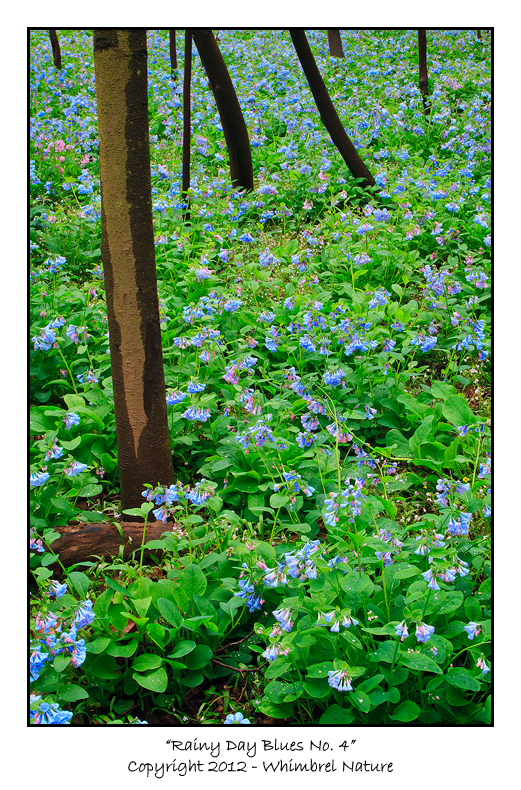
When it comes to photographing early spring wildflowers, rain just might be your friend, rather than your enemy. Now, I'm not talking a steady downpour here. When that happens, it is difficult to work and the flowers are likely being buffeted by the raindrops, if not the wind. But if you are lucky enough to have a light drizzling rain, or passing showers with breaks in between, the conditions can be perfect for wildflower photography. First of all, many spring wildflowers are blooming under the forest canopy, and even before the leaves start coming out, when the sun is out, the wildflowers are bathed in a dappled mix of harsh light and dark shadow that falls beyond your camera sensor's ability to capture it. An overcast and rainy day, on the other hand, provides an even and diffuse light that is perfect for both macro and more wide-angle type work. Also when objects are wet, particularly leaves and tree trunks, the colors are saturated and vibrant. Finally, raindrops on the flowers and leaves can greatly add to the composition.
Obviously, there are some drawbacks to photographing in the rain. It can make it somewhat difficult or uncomfortable to work. Simple procedures, like changing lenses, become more tricky. Depending on the temperature you can experience fogging issues with your lenses. There is less light available for exposures, meaning things like depth-of-field or an arrant breeze can become critical. Overcast skies can become a washed-out white or completely uninteresting uniform gray. However, all these problems can be overcome, with the right gear, a little preparation, and/or good technique in the field.
Some tips for rainy day wildflower photography:
1. Keep your lenses pointed down towards the ground, use a lens hood if possible, and cover your lenses with a lens cap when not in use.
2. Bring a microfiber lens cloth for when you forget #1 or a stray gust or splashing drop gets water on the front of your lens.
3. Bring a small towel (or absorbent clothing) to wipe off the rain that collects on your camera body and lenses, or consider using a rain cover. Be vigilant here, most modern cameras can take quite a bit of moisture without any problem, but if your camera is really getting soaked, consider packing it up until the rain slacks off again.
4. Try to minimize lens changes, and when necessary, do them under proper cover.
5. Bring an umbrella to use as a shelter for lens/battery changes or to cover your set-up during brief showers. But be aware that it is completely impractical to hold the umbrella while you are actually photographing (see #6).
6. Dress properly. Have a good raincoat with a hood, and consider wearing rain pants or at least quick-dry nylon pants. If you stay dry and warm, you are more likely to enjoy yourself, and you are more likely to take the time to get good compositions and wait out any breezes. You are also more likely to get down on the ground to get those low angle shots.
7. Unless you have some dramatic dark thunderstorm clouds to work with, plan to avoid including the sky in your compositions. Even if you expose properly or use an HDR technique, all you are likely to get is a boring featureless gray sky.
8. Be patient. Wait out those breezes or figure out how to block them. Worse case scenario, find another subject that is less exposed or consider doing motion abstracts.
9. Despite the lack of sun, still consider using a polarizer to remove reflections from the vegetation and help further saturate the colors.
10. I feel like this one should go without saying, but I'm always surprised. Use a tripod, even if your lenses have stabilization.
Photographing wildflowers in the rain can be quite rewarding and maximize your spring field time, despite the challenges. So get out there and do it!
Oh, one other benefit of photographing in the rain. You might have even the best spots to yourself. All the photographs on this page were taken on a rainy Saturday afternoon during peak bluebell season at Bull Run Regional Park near Manassas, VA. Normally on a peak weekend afternoon the place would be crawling with photographers, hikers, and tourists. On this afternoon, I saw one small family out hiking, and that was it. I had to wait out several passing showers and the inevitable breezes, but I think the results and the experience were worth the effort. Don't you?
Labels:
Tips and Locations
Subscribe to:
Comments (Atom)